CSS Selectors allow us to target specific HTML elements with our style sheets. While there are many different types of CSS Selectors, today’s lesson focuses on the four essential selectors; Type, ID, Class and Descendant selectors.
First We Need a Page To Style
CSS isn’t very useful without a page to style. Create a blank text document, and copy and paste the following HTML:
<!DOCTYPE html>

<html>
<head>
<meta charset="utf-8">
<title>CSS Selectors</title>
<link rel="stylesheet" href="style.css">
</head>

<body>

<h1>CSS Selectors</h1>

<div id="intro">
<p>This is the <em>first</em> paragraph.</p>
<p class="important">This is an <em>important</em> paragraph inside the Intro Div.</p>
</div>

<p>This is a regular paragraph.</p>
<p class="important">This is an <em>important</em> paragraph that is not in the Intro Div.</p>

</body>
</html>
Create a new folder named “CSS-Selectors” on your desktop or any other location you prefer. Then, save our document in this folder with a file name of index.htm.
The Page Without CSS
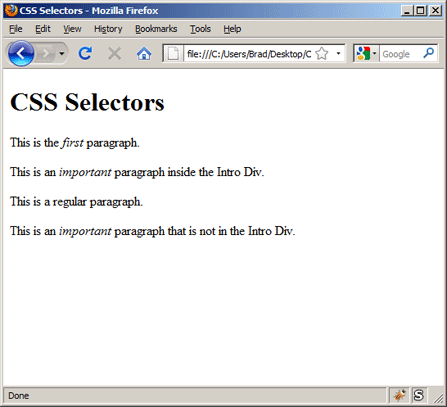
Open index.htm in a web browser, and you should see something very similar to this:
Let the CSS Begin
Now, create a new blank text document and save it in our “CSS-Selectors” folder with the file name of style.css. We are now ready to start styling our page with the four essential Selector types.
1 – Type Selector
Type Selectors are very simple. They correspond with any HTML element type. For example, add the following code to your blank CSS file; these are three simple Type Selectors:
body {
font-family: Arial, sans-serif;
font-size: small;
}

h1 {
color: green;
}

em {
color: red;
}
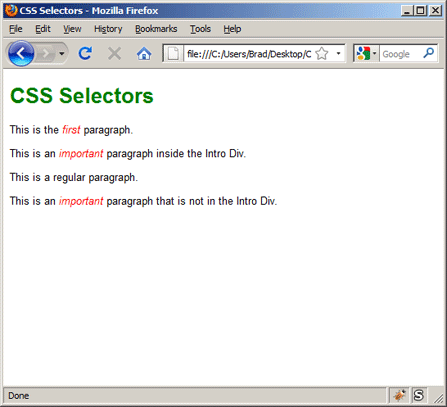
This code selects and styles our <body> element, as well as all <h1> and <em> elements on our page.
2 – ID Selectors
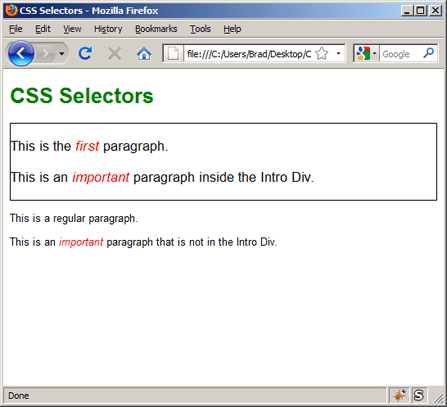
If you take a look at the code of our HTML page, you’ll notice we have a <div> element with an ID of intro. We assign elements IDs when they are unique on a page; there is only one “intro” section on our page. This is important, because two elements cannot have the same ID.
When an element has an “ID” we can access it with a CSS selector by placing a pound sign (#) in front of it’s ID value. Add the following code to your CSS file, directly below our <h1> rule:
#intro {
font-size: 130%;
border: 1px solid black;
}
3 – Class Selectors
Class Selectors are very similar to ID Selectors. The major difference is that while a certain ID should only be assigned to one element, we can assign the same class to as many elements as we want.
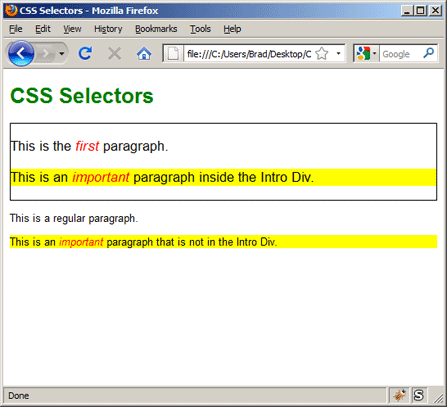
If you look at the code of our HTML page, you’ll notice that two of our paragraph tags have a class of “important.” When an element has a class we can access it with a CSS selector by placing a period in front of it’s class name. Let’s add the following rule to our CSS file to make these paragraphs stand out:
.important {
background-color: yellow;
}
4 – Descendant Selectors
Imagine we wanted the important paragraph in the “intro” Div to look different than the important paragraph at the bottom of the page. We can use a Descendant Selector to achieve this.
Add the following CSS rule at the bottom of our CSS file:
#intro .important {
background-color: orange;
}
Let’s dissect how the selector is working. It begins with “#intro” which selects our Intro Div. This is followed by a space, and then “.important.” So essentially our selector is telling the web browser to (1) find the element with the ID of intro, (2) go inside that element and find any elements with the class of important.
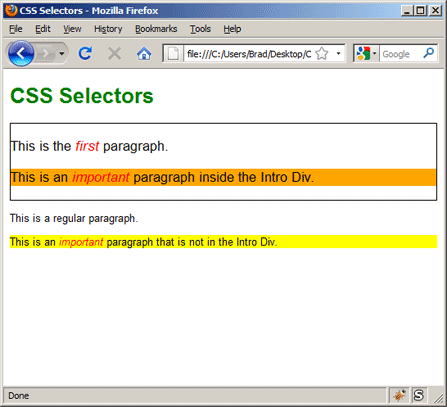
Notice that within the orange paragraph, the word “important” is red. Let’s imagine we want to change the color, since red text on an orange background is difficult to read. The word “important” is inside an <em> element, so we’ll use the following code to select and style it;
#intro .important em {
color: white;
}
This code is telling the browser to (1) find the element with an ID of intro, (2) go inside that element and find any elements with a class of important, (3) go inside that element and select any <em> elements.
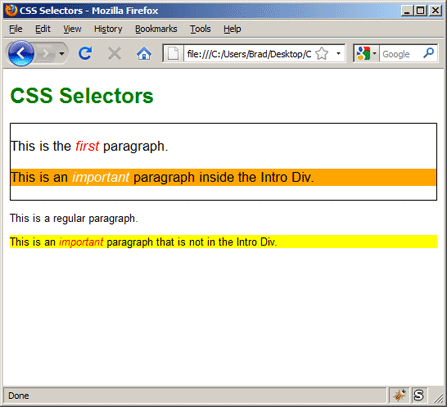
That’s it for today’s lesson. Let’s recap:
- Type Selectors correspond with HTML elements
- ID Selectors are used by adding # in front of an elements ID
- Class Selectors are used by adding a period in front of an elements class
- Descendant Selectors are similar to family trees; you start with the parent element you wish to select, add a space, and continue naming any interior elements until you’re arrived at the specific element you wish to select
In our next lesson we will begin studying the essence of all CSS Design; The CSS Box Model.
If you prefer to watch video lessons instead of reading written lessons check out my 8 hour video course and join 4,000+ others who have learned pro-level HTML, CSS, and responsive design.


Very good information about four essential selectors 🙂 i am happy to read this lesson
I’m really starting to understand the transferable nature of coding skills. I’m fairly proficient at Python, and that’s where I was introduced to OOP. This CSS selector business reminds me very much of that.
Hey Brad,
This is an amzing article. I was struggling with understanding a css file full of descendent selectors and here I came across this post and it cleared all my doubts.
Meticulously written!
Thanks a lot!
Cheers 🙂
Very easy to understand with good examples. I love how your article contains all the information I need to know without being too wordy!
Thanks!
is there a list for all possible selectors, like h1 is a selector, p is a selector, but is body a selector?
Hello,
Thank you so much for the tutorial…very much appreciated.
Dell
Thanks for help 🙂
Ahh I’m so glad I was able to find your site again. I had to google “Nate Shenk comments” because I couldn’t remember your site’s name ha…yet your website isn’t hard to remember “learnwebcode” anyway! Thoughts on doing more YouTube tutorials? You’re still as awesome as ever!
Hey Nate! Thanks for the comment, and speaking of names being memorable or not, haha, I definitely remember you commenting on the site before. I’d definitely like to do more YouTube tutorials. I’m trying to open up my schedule a bit and I have plans on creating videos on Git, Gulp, PostCSS, etc… stay tuned! 🙂
Hi,
I learning html & CSS from your channel. My biggest request is could you attach the code of how to make responsive site?
Hi Vivek, here is a link to my tutorial on Responsive Web Design. I hope that helps, thanks!
thank you sir for this tutorial, i dnt have any idea about css ,but when i come out with this page, i understand now wat was really d use of css. thank you sir. More Power ^__^
moving up
thx bro for this tutorials